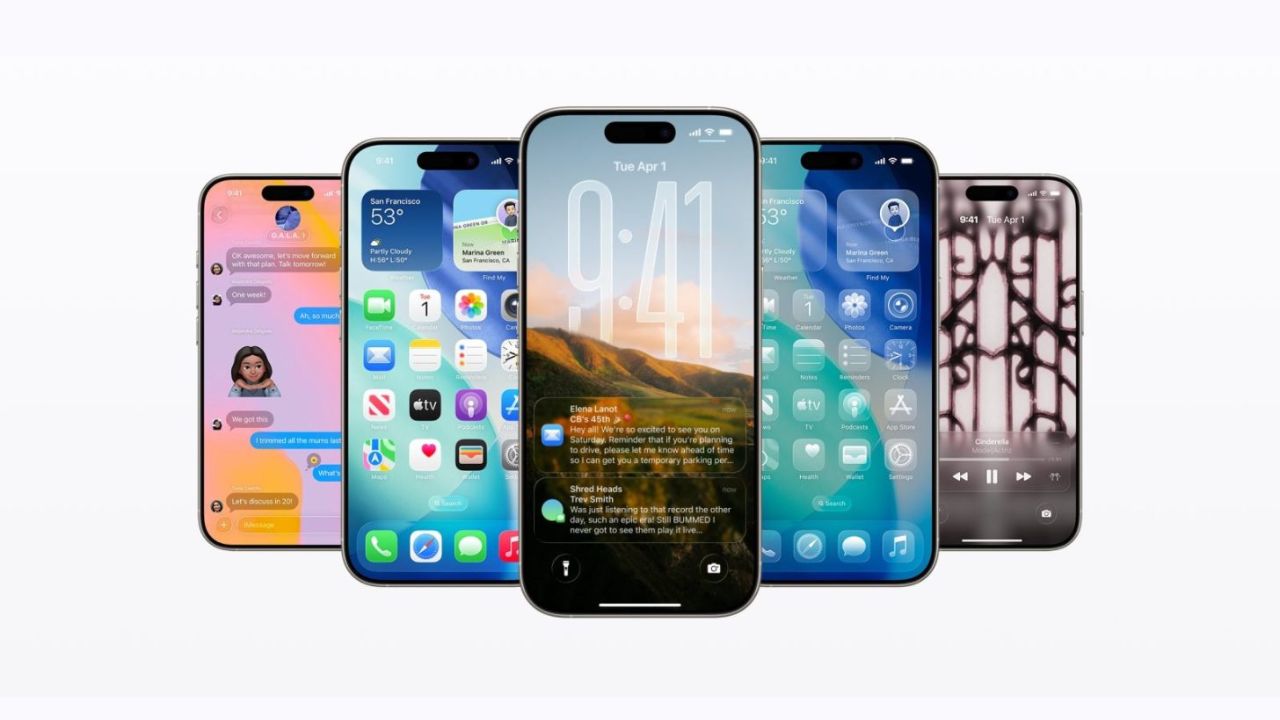
Apple recently released iOS 26, which introduces a new design called the Liquid Glass interface. The update brings fresh visuals, smoother animations, and several new features. However, many iPhone users have reported problems such as lagging, app glitches, and occasional freezing. For those frustrated with these issues, Apple still allows users to revert to the previous version, iOS 18.6.2. This process is called “downgrading,” and it can restore your iPhone to a more stable interface.
Why Users Consider Downgrading
Early updates often have minor bugs because developers cannot test every scenario before release. iOS 26, while visually appealing, has caused delays in app performance and slower navigation for some users. People who rely on their iPhones for daily work or communication may find these lags disruptive. Downgrading to iOS 18.6.2, which Apple continues to sign officially, provides a temporary solution until Apple fixes the issues in future updates.
Important Precautions Before Downgrading
Downgrading is not a simple process. It involves erasing all data on your iPhone. Therefore, users must create full backups of important content like photos, videos, contacts, notes, and app data. Apple recommends using iCloud, Finder on Mac, or iTunes on Windows for backups. It is also wise to create multiple backups to avoid losing critical information.
Another essential step is turning off “Find My iPhone” in the device settings. This prevents problems related to activation locks during the restore process. Users should also sign out of their Apple ID temporarily for safety.
Step-by-Step Downgrade Guide
Back Up Your Data – Ensure all data is securely backed up. Use iCloud or iTunes, and double-check that all files are saved.
Turn Off Find My iPhone – Go to Settings > Apple ID > Find My iPhone and switch it off. Sign out of your Apple ID as well.
Download iOS 18.6.2 IPSW File – The IPSW file is the software firmware needed for the downgrade. Make sure you download the version specific to your iPhone model from Apple’s official site or IPSW.me. Confirm that Apple still signs this version.
Connect iPhone to Computer – Use a Lightning or USB-C cable to connect your iPhone to a Mac or Windows PC. Make sure Finder (Mac) or iTunes (Windows) recognizes the device.
Enter DFU Mode – DFU (Device Firmware Update) mode allows the computer to restore your iPhone. On most devices, this involves pressing Volume Up, then Volume Down, holding the Side button until the screen turns black, and then holding Volume Down while releasing the Side button.
Restore iOS 18.6.2 – On a Mac, open Finder, hold the Option key, and click “Restore iPhone.” On Windows, open iTunes, hold Shift, click “Restore,” and select the downloaded iOS 18.6.2 file.
Wait for Installation – Your iPhone will restart multiple times as the downgrade applies. Be patient and do not disconnect the device.
Restore Backup or Start Fresh – After installation, you can either restore your backup or set up the device as new.
What Users Should Expect
After downgrading, your iPhone should run more smoothly with fewer glitches. However, some apps or features introduced in iOS 26 may no longer be available. Users may need to reinstall apps or update them to versions compatible with iOS 18.6.2.
How Apple Plans to Fix iOS 26
Apple emphasizes that software updates are important for security, stability, and new features. The company often expects temporary slowdowns immediately after a major release. This is because the iPhone is performing background tasks like re-indexing files and updating apps. Future iOS 26 updates will likely fix performance issues and improve battery life.